
tutorial_1-creating_the_model_objects
Tutorial 1 - Creating the model objects
Page 2 of 5
Creating a project


Adding algebraic expressions
The algebraic expressions of the model are implemented by creating Expression blocks. There are several ways of creating Expression blocks:
- In the Interaction matrix of the Matrix window
- In the Blocks window
- When entering expressions for other objects.
- In the Graph window.
In this lesson we will explore the first three ways. The Graph window will be covered in a later tutorial.
Creating Income using the Matrix window
- Make sure that the Matrix window is opened by selecting Window | Matrix from the Menu bar.
- Right-click the first diagonal element in the Interaction matrix. Select Expression from the pop-up menu.
- Double-click the Expression, or right-click it and select Edit from the pop-up menu.
- Make sure that the Properties tab is selected, and enter “Income” in the Name field.
- Select the Values tab. In the Equation column, write the expression “Sales + Fees” on the Expression row and press Enter. A window will appear as two unknown objects are referred to in the expression. These are both time-dependent input values, select “Lookup Table” from the Type drop-down list for both Sales and Fees. Click Ok.
- Close the edit window by clicking Ok
Creating Profit from the Blocks window
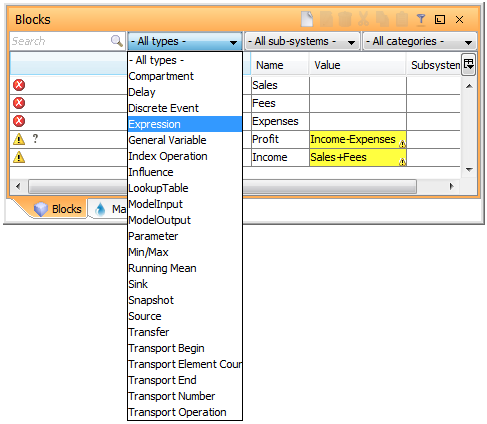
- Make sure that the Blocks window is visible by selecting Window | Blocks from the Menu bar. The window should list the three Blocks that you have already created: Income, Sales and Fees.
- Either select “Expression” from the Type drop-down list and click the
 New button on the title bar, or right-click the window and select Create | Expression from the pop-up menu.
 - In the table, click the Name field for the newly created Expression and write “Profit”.
- Next, click the Value field for the Expression and write “Income - Expenses”. Like before, AFRY Intelligent Scenario Modelling will discover unknown objects when you click Enter. The unknown object is “Expenses”; select “Expression” from the Type drop-down list. Click Ok to close the window.
- You should now see a new Expression in the list of blocks named “Expenses”. Enter “Salary + Tax + Rent” in the Value field, where
- Salary is a Parameter
- Tax is an Expression
- Rent is a Parameter
Using the Expression editing tool
- Instead of writing the equation for the Tax Expression directly, right click the Tax block in the table and select Edit from the pop-up menu.
- Make sure that the Values tab is selected.
- Click the Equation field of the table. The Expression editing tool will appear to assist you when writing the expression. As you see, there is a list of all blocks of your model. Double-click Income to add it to the expression. Click the asterix (’*’) on the key-pad, and then write “TaxRate” so that the full expression becomes “Income * TaxRate”. When you press Enter and the “Unknown values” window appears, select “Parameter” for TaxRate.
- Click Ok to close the windows.
| Note | Instead of double-clicking income, try to use auto-completion: write “i” and press space, use the arrow keys to select Income and press enter. Read more here |
Next
Previous
References
tutorial_1-creating_the_model_objects.txt · Last modified: by Boris Alfonso